
Forms
ePLAN forms are predefined layout templates used to standardize the appearance and content of pages and reports within an EPLAN project. They define how information such as project data, device information, symbols, and reports are visually arranged and presented in the documentation.
What EPLAN Forms Are Used For
EPLAN forms are used to create:
Title pages
Schematic pages
Overview pages
Terminal diagrams
Cable diagrams
Reports (BOMs, terminal lists, cable lists, PLC I/O lists)
EPLAN forms control:
Page size and frame layout
Title block content (project name, customer, page number, revision, etc.)
Placement of text fields and properties
Company logos and standard notes
Report table layout and column structure
Forms do not contain electrical logic or functions, only the graphical and informational layout.
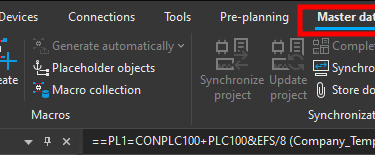
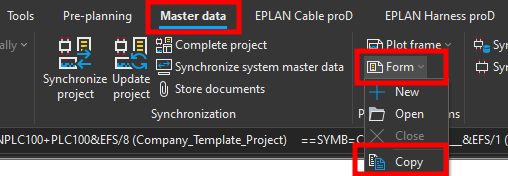
You can copy forms, create new forms or edit existing forms. To open an existing form click on the Master data ribbon then click on Form.
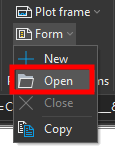
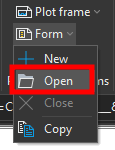
Now click on Open.

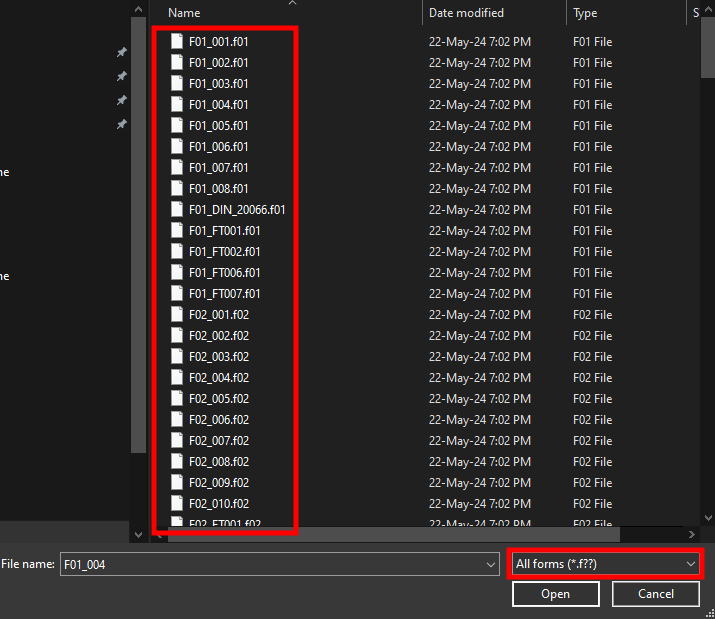
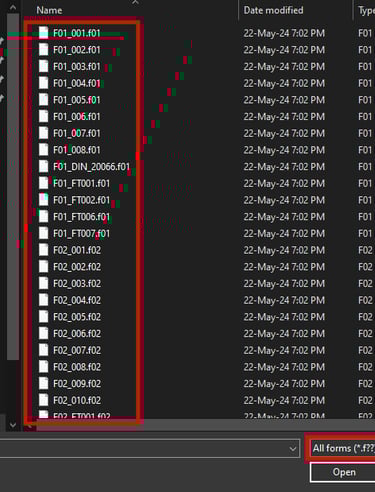
Now you can select which form you would like to open to edit. At the bottom right you have options of searching for specific forms such as part list forms.
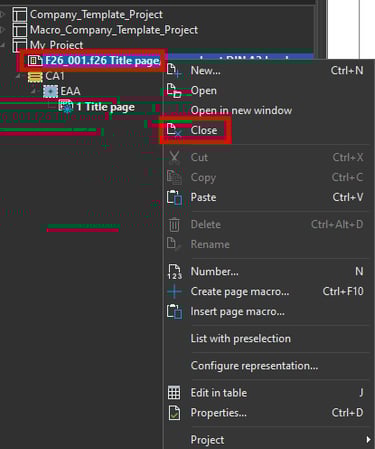
When you are finished with the editing a form you can close the from by right clicking on the opened form and then clicking on the Close command.
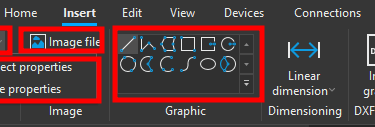
Now you can edit the form and you can select objects and delete them, move them or add new objects such as special texts like page and project texts. You can also use graphic objects such as lines and rectangles to add to the form.
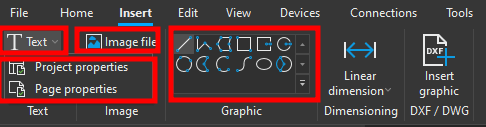
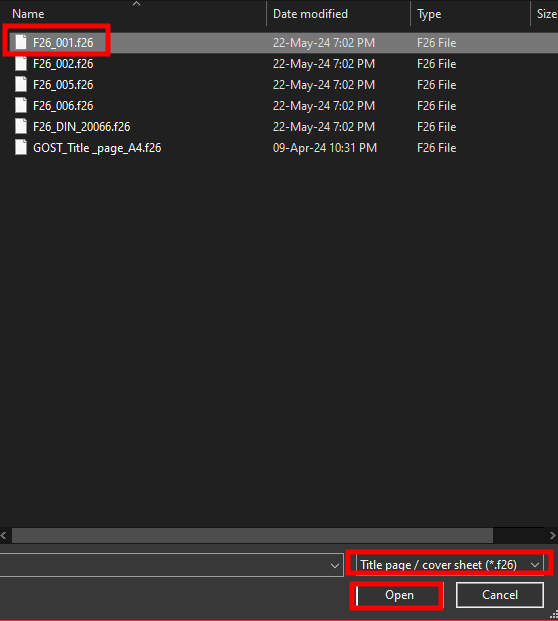
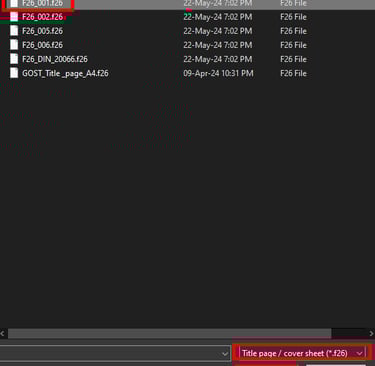
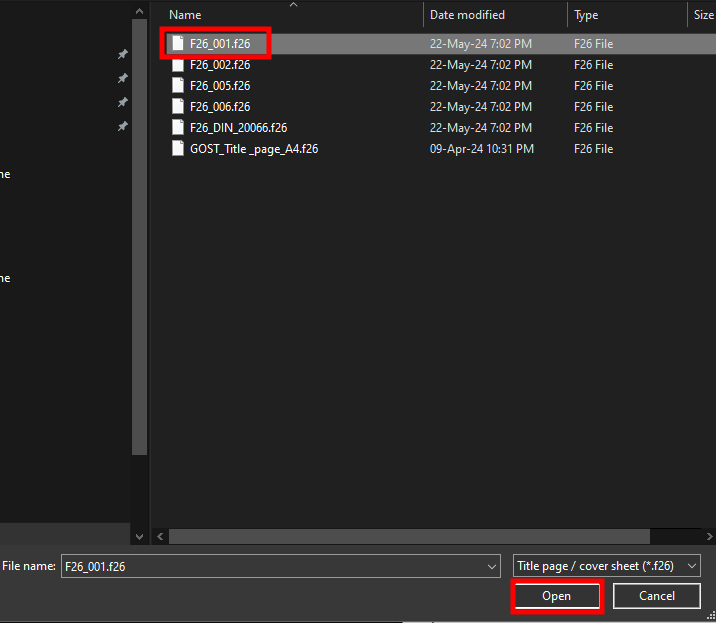
When you find a from that you would like to edit select it and then click on the Open button. In this case we will select the F26_001.f26 title page form.
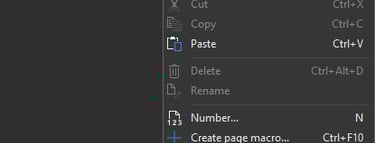
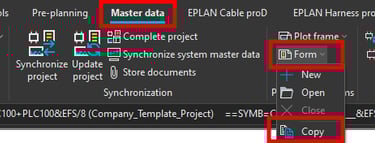
Also you can copy an existing form in that way you can use an existing form as a reference and you do not have to change the existing form but create a new one from an existing form. To copy an existing form click on the Form and then on the Copy command in the Master data ribbon.
Now select the form that you would like to copy and then click on the Open button.
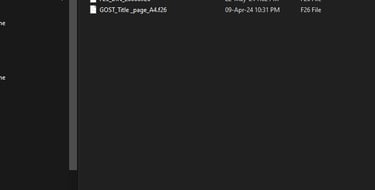
Now give the copied form a name and then click on the Save button.

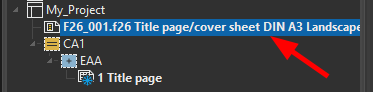
Now the copied form with the new name can be seen at the top in the page navigator.
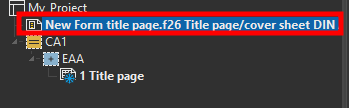
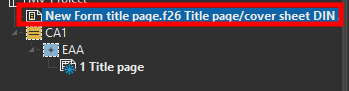
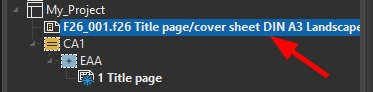
You can see the form name at the top of the project which means that the form is opened for editing.